CamHeard documentation
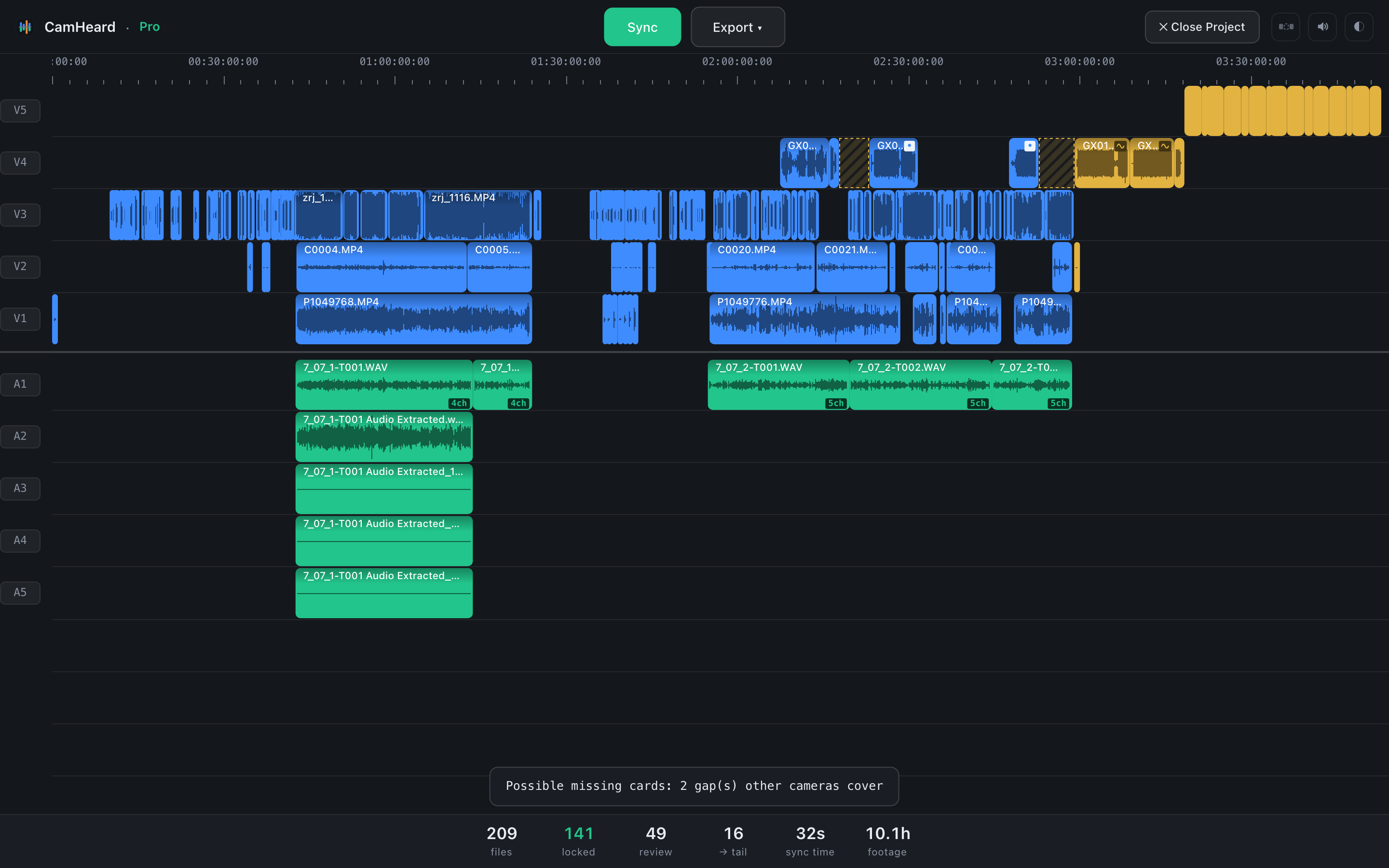

CamHeard syncs footage from several cameras and a recorder by sound and hands you a finished timeline in your editor. This describes every element of the window, every number and every export option.
Where to start
What CamHeard isWho it is for, what it does and what it does not do.Preparing the footageA folder per camera, the recorder separately. Two minutes that decide the result.Running the syncYou dropped the folders, pressed Sync, waited. What happens meanwhile.Reading the timelineColours, marks on clips, tracks.The status barWhat locked, review and → tail mean.ExportWhich file goes to which editor and what travels inside it.
Three steps
- Drop the shoot into the window. The whole shoot folder, or the separate folders of the cameras and the recorder. Files are neither copied nor changed.
- Press Sync. The app lays the material out on the timeline by itself. The more footage, the longer it takes.
- Export. The Export menu, then Premiere Pro, DaVinci Resolve or Final Cut Pro. Open the file in your editor.
Other languages. The documentation is available in thirteen languages. Ukrainian is the source, the rest is translated from it.