Selecting and deleting clips
A clip you do not need can be removed from the project right on the timeline. The files on disk are untouched, and what was removed comes back with a single ⌘Z.

Selecting
- A click on a clip selects it: a white outline around the clip.
- Shift with a click selects a range, ⌘ with a click adds or removes a single clip.
- A click on a track label (V2, A1) selects the whole track. A green stripe appears along its label.
- ⌘A selects everything, Esc clears the selection.
Removing
Delete or Backspace. At the bottom you get Removed C0020.MP4 · ⌘Z to undo. Removed clips do not go into the export and take no part in the next sync if you press Sync again. Remove everything and the project is empty.
Bringing it back
⌘Z puts the last removal back in the same place. There are as many undo steps as there were removals; the message tells you how many are left.
The context menu
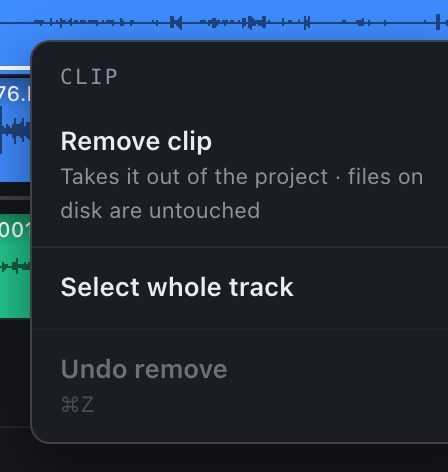
| Item | What it does |
|---|---|
| Remove clip / Remove 3 clips / Remove this track | Remove from the project. The files on disk are untouched. |
| Select whole track | Select the whole track this clip is on. |
| Undo remove | Bring back the last removal. The number of steps is in brackets. |
A right click on a track label selects the whole track at once and opens the same menu.