Running the sync

Press Sync. After that you can do nothing: the app listens to the footage and lays it out on the timeline by itself.
What you see while it runs
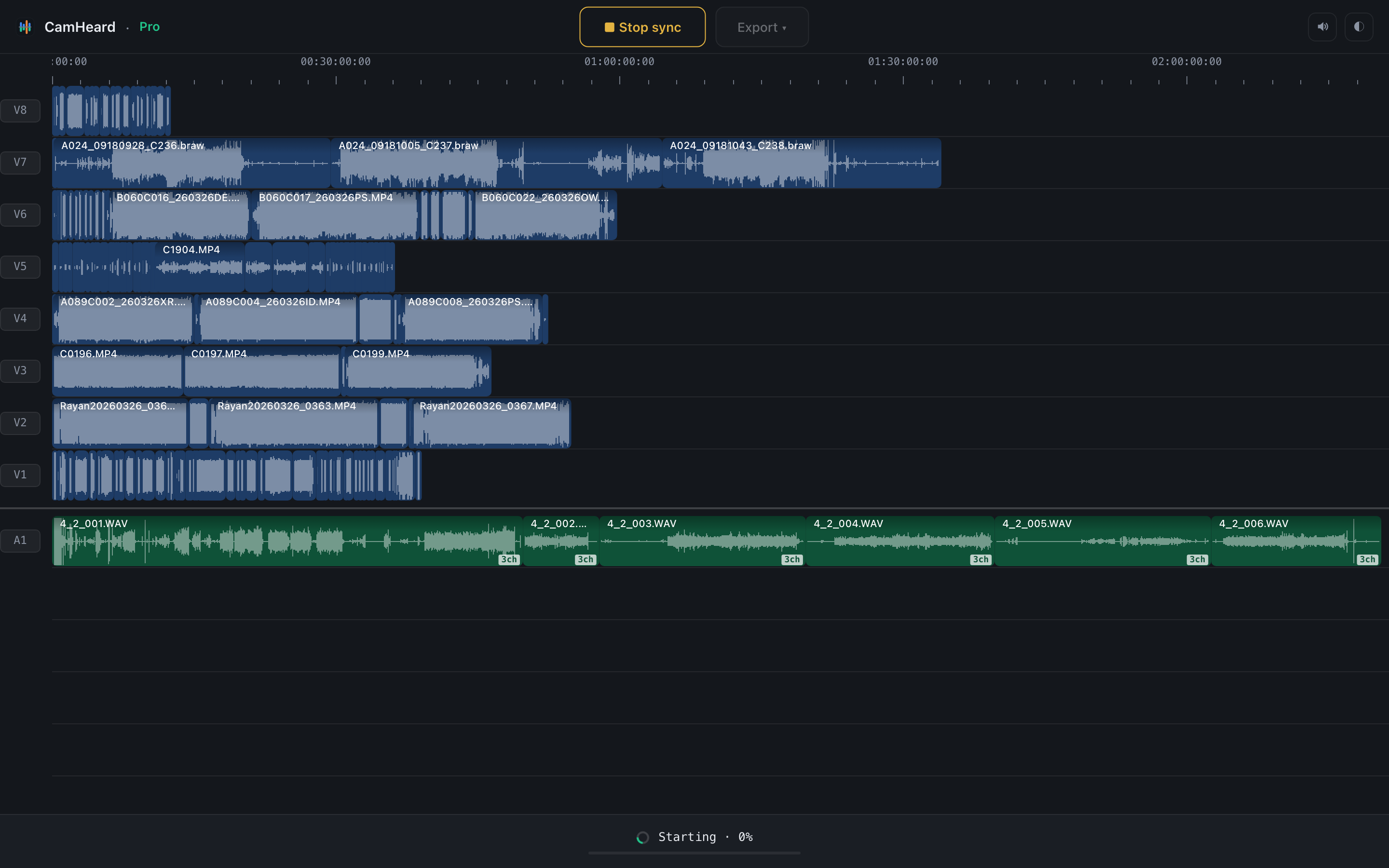
The Sync button becomes ■ Stop sync, and at the bottom the stage and the percentage run, for example Decoding audio · 26%. There are several stages; the two long ones are:
- Decoding audio: reading the sound out of every file. Drive speed matters most here.
- Matching clips: the sync itself.
- Then shorter ones: Resolving timeline, Locking recorder tracks, Checking our own work, Refining frame accuracy.
How long it takes
The more footage, the longer. Drive speed and the computer itself matter most. As a guide, on a Mac with Apple Silicon and footage on a fast drive:
| Shoot | Footage | Sync |
|---|---|---|
| 1 camera + recorder, 12 files | 36 min | 2.6 s |
| 3 cameras + recorders, 117 files | 2.8 h | 15 s |
| 5 cameras + recorder, 209 files | 10.1 h | 30 s |
| 8 cameras + recorder, 215 files | 8.9 h | 29 s |
| 3 cameras + 3 recorders, 241 files | 17.3 h | 1 min 2 s |
| 6 cameras + 3 recorders, 307 files | 15.0 h | 1 min 5 s |
These are real shoots, and their screenshots are on the Shoot examples page. On a slow drive or a network volume the same shoots take several times longer.
When it is done
The clips move to their places, a short sound plays (you can turn it off with the speaker in the top bar) and the numbers appear in the status bar. What they mean is described on the Status bar page.
If some cameras have gaps where other cameras were rolling, the message Possible missing cards: 2 gap(s) other cameras cover appears. See Possible missing card.
Timecode only
When two or more devices share a jammed timecode, a TC button appears in the top bar. Turn it on before Sync and the app places the footage by that timecode alone. On big cards that is seconds instead of hours.
- The button is there only where the timecode really is shared. If it is missing, this route does not work on this footage.
- Every clip placed that way is marked TC. See Export options.
- The button stays after the run: you can switch the mode off and sync by sound instead.
- New footage resets the choice: the mode is a one-off decision for one shoot.
It is a request, not an order. If the timecode turns out not to be shared, the app reads the sound as always and says so in a message. It cannot ignore your choice silently.
If the sync did not finish
A red banner appears, The sync didn’t finish, with the error text. What to do next is described on the Troubleshooting page.